
Preface
To minimize the learning curve, we’ve made sure that integration with our new Cloud Platform is as seamless as possible. Most actions can be carried out in the familiar AccoWin desktop applications, using the new APIs in the background. Working with the new web interface is generally not required initially.
However, we do recommend reviewing the documentation on the Cloud Platform. It provides a clear overview of how concepts like users, organisations, and members translate to users and files in AccoWin.
Please note that some manuals may differ from the current software version. They serve as general guidance to help you become familiar with the new structure and terminology. Manuals will be updated as new functionality is released. For more information, consult the documentation here: Cloud Docs
We are also working on short videos on our YouTube channel with brief demonstrations of specific features. This offers a quick visual overview of how to perform specific tasks in the Cloud Platform or AccoWin.
https://www.youtube.com/@lbrpsoftware
In AccoWin
Registering the Submitter (Accountant) in the Web Application
To register on the Cloud Platform via AccoWin, click the first globe icon near the language selection at the top right of the main screen (an active file must be open and you must be an Administrator to access this option). The Cloud Registration screen will appear.
Enter the email address and password to be used as the primary user (the submitter or accountant) in the cloud. Also provide your VAT number to allow automatic creation of the appropriate organization. These should match the details under “General Options” -> “Accountant/Submitter”.
Once registered, you will automatically be added as a member of the organization with the role administrator. The Organization Identifier is linked in AccoWin when you click the Register button.
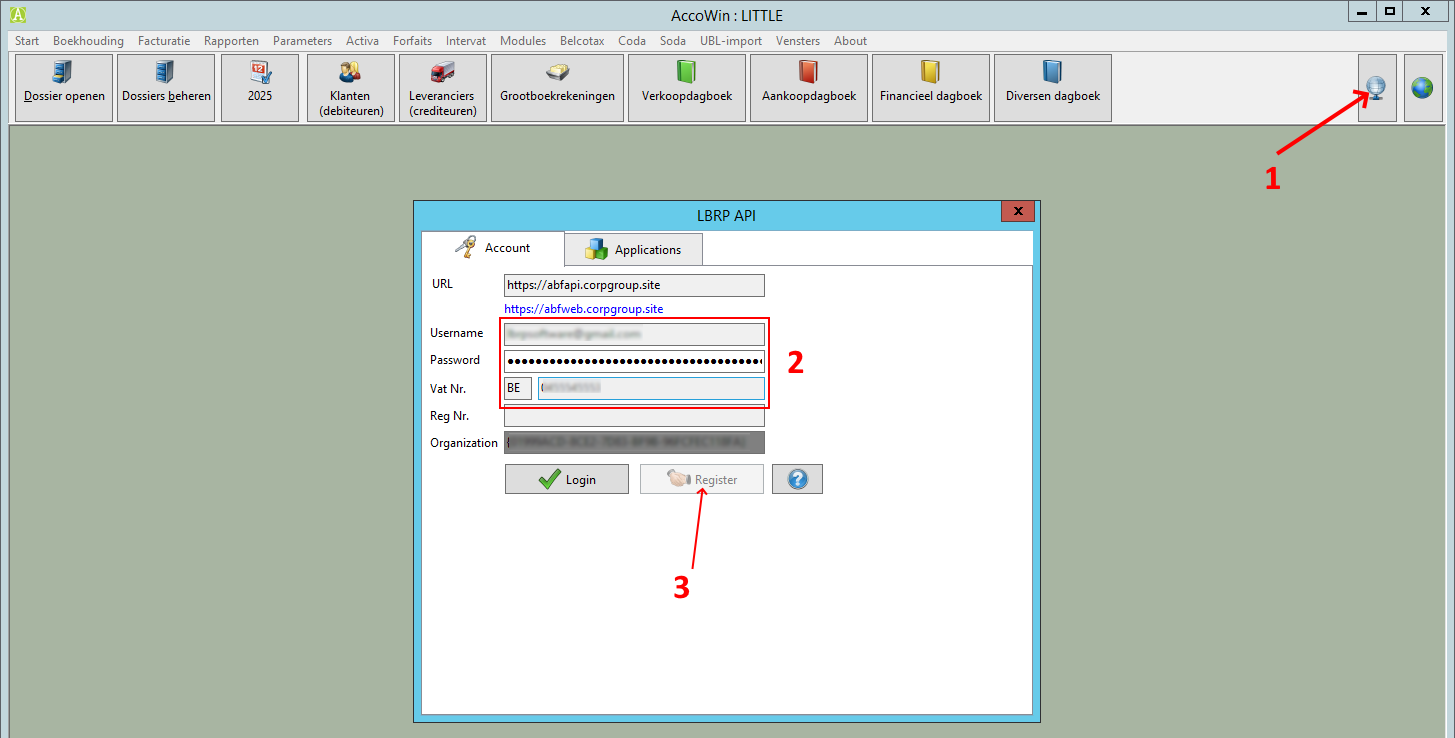
This registration is a one-time task. After registration, these details should not be changed! You can use the same credentials to link other desktop applications, such as Belcofin and Finasset, to the Cloud Platform. Use the Login button and enter the same credentials.
Activating Application for Peppol (Scrada)
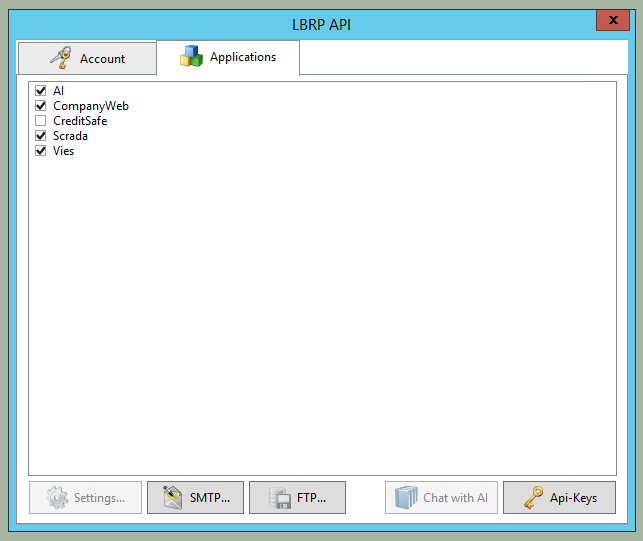
In the second tab you can activate applications that apply to you.
To enable Peppol functionality, select Scrada, our Access Point.
This tab also contains most settings required for specific features, such as email settings, FTP settings, AI API keys, and per-application settings. This is covered in separate articles.
Peppol Registration for Your Company
Your organization or file can be registered on Peppol (Scrada) through the “File Management” screen. A file for your own organization must exist.
If the VAT number in the “Accounting” tab matches the one used during registration, a Register button will appear instead of Invite in the Peppol section on the “Address” tab.
Click this button to register your own organization on Peppol. The Organization Identifier must match what was used during initial registration.
By clicking Check, you can verify if and where a file is registered on Peppol. A valid VAT number must be entered. If found, related data like Access Point and supported document types is filled in automatically.
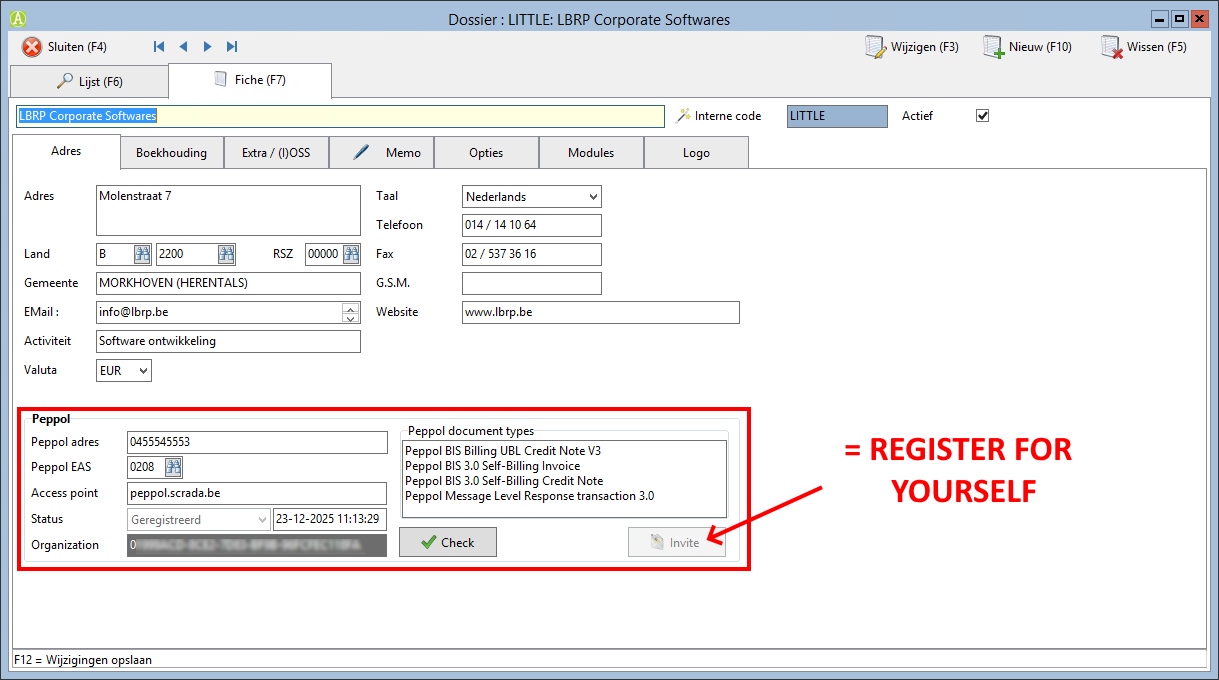
Note: Peppol registration may take a few seconds to propagate through the network. If not immediately visible, wait and click Check again to refresh the status.
Registering Client Organizations (Files)
Registering clients is more complex since you must first obtain consent from each client and invite them to our platform.
The client does not need to use our software, but their organization must exist in the system. Make sure at a minimum the client's email and VAT number are entered correctly.
Then click the Invite button. An email is sent that allows the client to accept the invitation. The invitation email is valid for 7 days.
We are currently experiencing issues with our email server, especially with Telenet users. Emails are blocked, possibly causing invitations or confirmations to not be received. We're switching to a recognized email service to fix this. In the meantime, we may need to intervene manually for Telenet addresses.
The client can create their account by choosing a password in the web application (the email is pre-filled from the invite link). If the client already has an account, they don’t need to choose a new password. In that case, clicking the link finalizes the acceptance.
Once accepted, the client becomes the Administrator for their own file/organization. You, the submitter, are given the Manager role.
You, the accountant, can manage the full file, but no longer have access to users, members, and applications of the organization. This responsibility is transferred to your client as the organization’s owner.
In the CLOUD
Completing Peppol Registration via Scrada by Your Client (File)
After accepting your invitation, the client must still register themselves on Peppol.‼️
Make sure the correct organization is active. A new user is automatically assigned a blank personal organization in addition to the one synced from AccoWin. Ignore the personal organization — it has no members.
The correct organization is the one with the valid VAT number and data as entered by you, the accountant, in AccoWin.
Click the account icon at the top right in the browser and select Organisations.
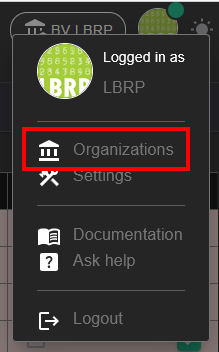
Activate the correct organization by clicking the checkmark on the right side. Then go to the details of the organization via the button next to the account icon.
Click the Applications tab and activate the Scrada application by clicking the green checkmark next to it.
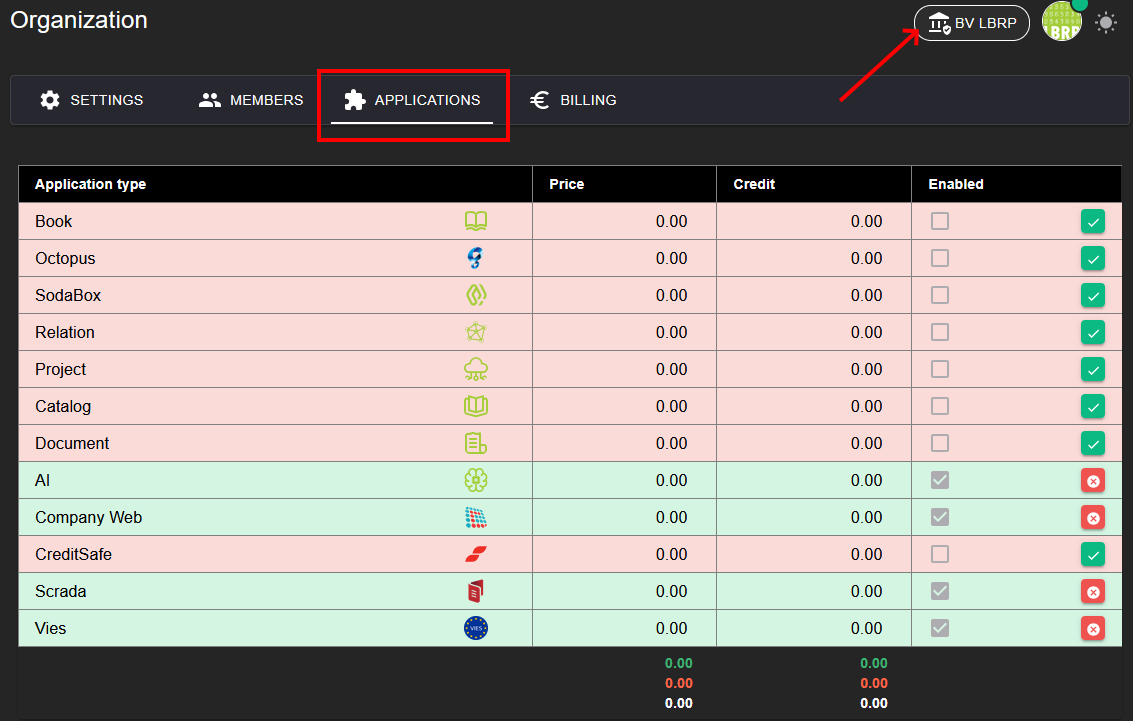
After a while, the menu item Scrada appears in the left navigation bar. Click it and go to the Participants tab.
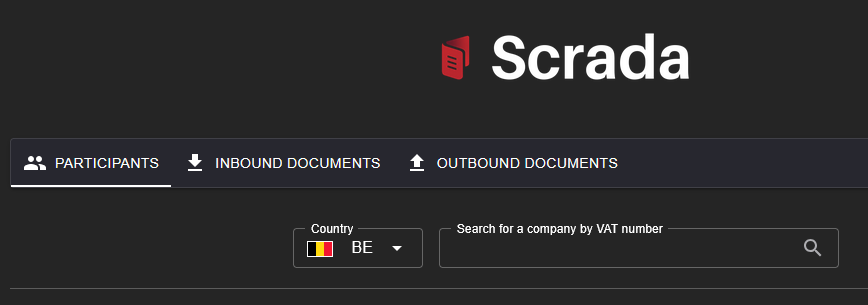
At the bottom, you'll see a green button allowing the client to register themselves on Peppol.

Fill in the organization name and VAT number as previously registered, then click OK to complete the registration.
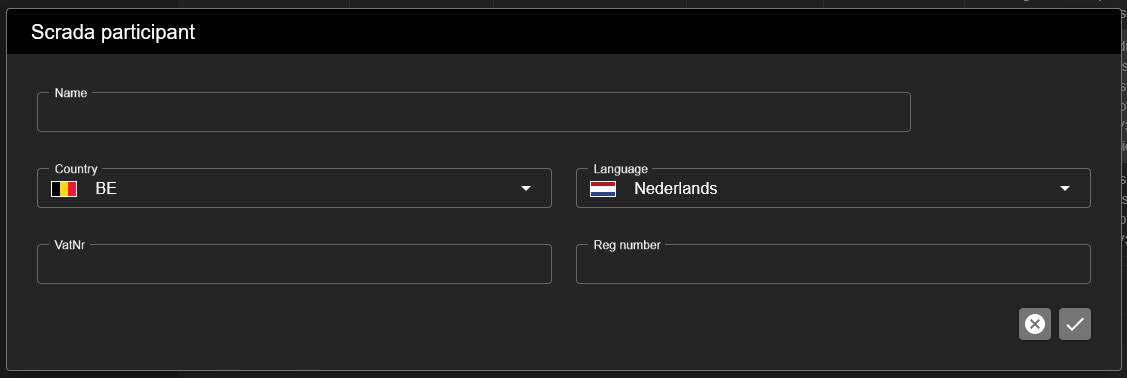
Note: Due to a bug, the OK button may not be visible if the current subscription is set to Free. Temporarily switch the plan to Basic to resolve this. You can switch back to Free afterward.
We know this process is currently a bit cumbersome for many users. We are working to simplify it as soon as possible.
In the future, the client will only need to click the invitation link. Scrada activation and Peppol registration will then be handled automatically.